Script to speech
Make narration with a voice over generator
A voice over generator can give a finished script a spoken first pass without arranging a recording session. Start with the words you want heard, then review the result against your visuals before publishing.
Where voice-over production gets stuck
The hard part is often not writing a sentence; it is making that sentence fit a scene, sound natural and remain clear on the first listen.
Three concrete voice-over workflows
Choose the workflow that matches the material you already have. Each one ends with a listening pass rather than treating generated speech as a finished deliverable.
-
1
Narrate a short video
Write one or two sentences per shot and mark where the viewer needs time to look. Generate a read, place it against the edit, then shorten any line that runs past its shot. Check that the opening explains what the viewer is about to see.
-
2
Explain a lesson
Break the teaching script into small sections with a single idea in each. Spell out abbreviations on their first use and add pauses before key instructions. Listen at the learner’s pace, especially where a diagram or demonstration needs attention.
-
3
Guide a product demo
Match each spoken instruction to an action visible on screen. Use consistent names for buttons and features, and leave room for a click or transition. After generating the read, verify that the interface still matches every instruction in the script.
Example output: a script built for the edit
For a product-demo opening, a useful draft might read: “Choose a template. Add your details. Preview the result before sharing.” The short clauses leave room for each action to appear on screen.
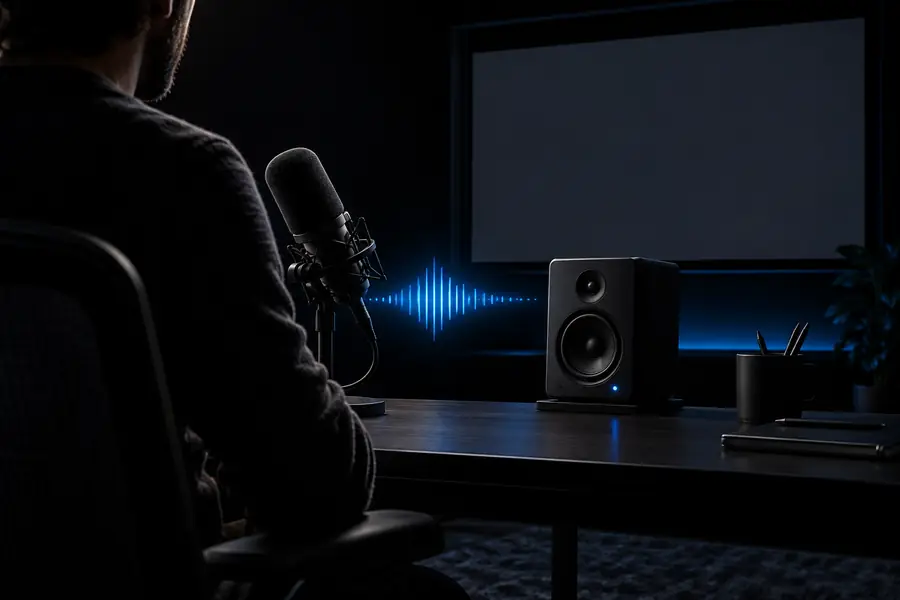
- Before: draft the spoken sequence
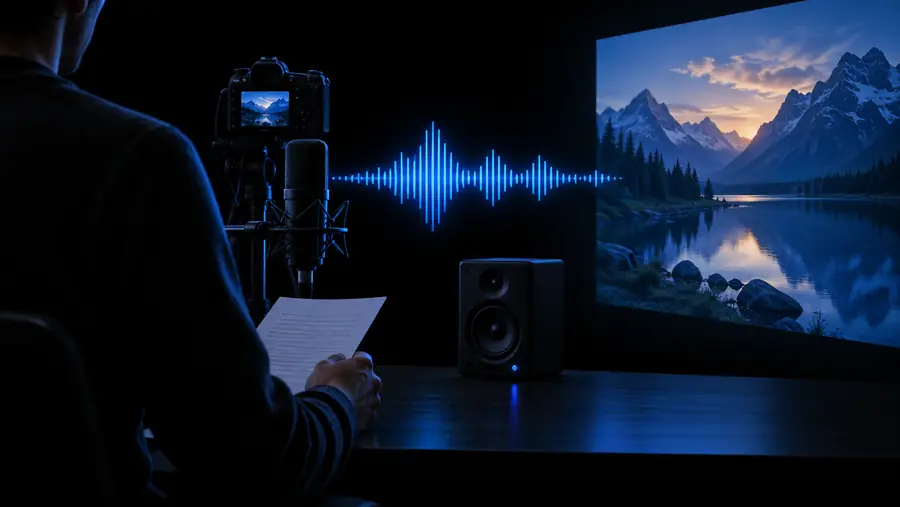
- After: review it with the visuals
These images illustrate the workflow, not an audio comparison. In an actual voice-over review, listen for pronunciation, pauses and whether the last word lands before the shot changes.
Compliance notes before publishing
Generated narration needs the same editorial care as a recorded read. Check what you have permission to say, whose identity a voice might suggest and where the audio will appear.
-
It cannot grant voice rights
Generated speech does not give you permission to imitate a recognisable person or imply that they endorsed your work. A familiar-sounding read can still create confusion even if you wrote the script yourself.
WorkaroundChoose a distinct, non-impersonating voice and obtain consent before using anyone’s identity or likeness.
-
It cannot verify your claims
A confident delivery can make an inaccurate statement sound authoritative. This matters particularly for instructions, testimonials and claims about a product or service.
WorkaroundFact-check the script, remove unsupported claims and have a subject-matter reviewer approve sensitive material.
-
It cannot guarantee accessibility
Audio alone may not serve viewers who cannot hear it, while fast narration may be difficult for others to follow. Background music can also mask important words.
WorkaroundProvide accurate captions or a transcript, and listen to the final mix at a comfortable volume.
-
It cannot predict every pronunciation
Names, acronyms and specialist terms may be spoken differently from what your audience expects. One incorrect word can make an otherwise usable take confusing.
WorkaroundTest difficult terms in a short sample and rewrite them phonetically in the working script when needed.
Turn your draft into narration
Hear the script before you publish
Bring a short, edited script to Voicegenerator and listen to it in the context of your video, lesson or demo. Revise the wording when the pacing feels crowded, and keep a human review in the workflow for names, claims and permissions.
Generate narration- Write for the scene, not just the page
- Check pacing against the visuals
- Review rights and accuracy before release
Voice-over scenario FAQ
Yes, you can prepare a script for a video and generate a spoken read from it. Check the applicable usage terms for the tool and any material in the video, then listen to the final edit to confirm the narration matches the timing and content.
Use short sentences that describe the action currently visible on screen. Keep interface labels consistent, leave pauses for clicks or transitions, and replay the finished sequence to catch instructions that arrive too early or too late.
Introduce one concept at a time and write out terms that might be pronounced ambiguously. Add natural breaks where learners need to inspect a diagram, follow an example or complete a step.
Usually, yes. Listen for mispronounced words, abrupt pauses and sentences that do not fit the visuals, then revise the script or edit the sequence. Check the final mix with music and other sounds, not only the voice track.
No. Captions or a transcript help people who cannot hear the narration and viewers watching without sound. Review the text against the final audio so it reflects what is actually said.